Loading... Please wait...



)
Product Description
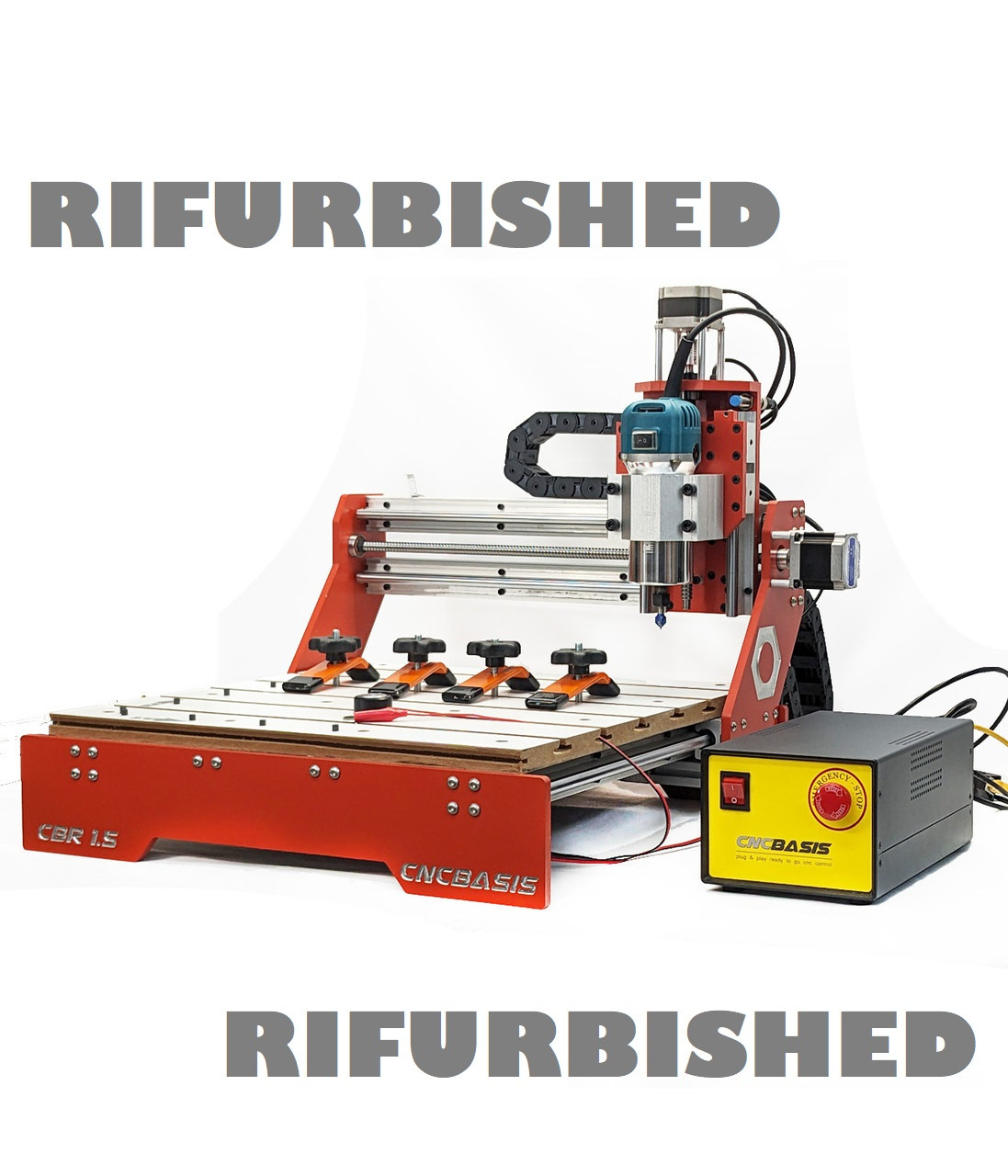
Introducing our precision-engineered Small Desktop CNC Router, the ideal tool for hobbyists, small businesses, and educational institutions looking to elevate their craftsmanship and productivity. This compact yet powerful machine is designed to bring your creative visions to life with ease and precision.
Key Features:
- High Precision Cutting: Equipped with state-of-the-art technology, this CNC router offers remarkable precision and accuracy in cutting various materials such as wood, plastic, acrylic, and even soft metals.2D and 3D Cutting
- User-Friendly Interface: The intuitive control interface allows for easy operation, making it suitable for beginners and experienced users alike. Using Mach3 CNC Software which is most popular of the professional CNC Software in the market with a large support community and huge library of video tutorials in YouTube. Our EasyMode Screen for Mach3 with its user-friendly design ensures a smooth learning curve.
- Compact Design: With a space-saving footprint, this small CNC router fits seamlessly into workshops or studios with limited space, without compromising on functionality or performance.
- Versatile Applications: From intricate designs to simple cuts, this machine accommodates a wide range of applications, including engraving, milling, carving, and more.
- Durable Construction: Crafted from high-quality 0.375" ALUMINUM PLATE 6061-T6, aluminum profiles and 1204 balls crews and sbr12 rails and blocks, this CNC router is built to last, ensuring reliability and longevity in your projects.
Technical Specifications:
- Cutting Area: [Specify dimensions]
- Spindle Power: 800-Watt
- Maximum Cutting Speed: It will depend on the material and bit combination you re using, check your tool requirements.
- Compatible Materials: Wood, Plastic, Acrylic, Carbon Fiber Soft Metals like Aluminum, Brass etc.
- Compatibility: Compatible with various CAD-CAM & design software for seamless integration into your workflow. Fusion 360, Inkscape. VCarve Pro, Aspire, Vectric, AutoCAD, Easel, Alibre Atom, Carbide Create, Makercam, MeshCAM, Solidworks, Openbuilds, etc.
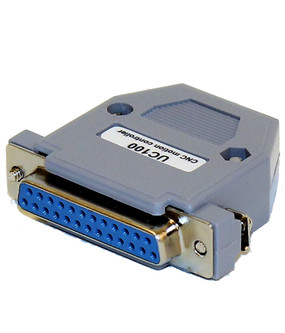
- Compatible CNC Software: Mach3, Mach4 or UCCNC software.
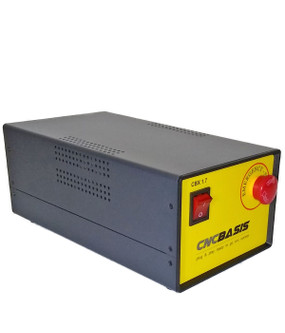
- Safety Features: Hard Wired Emergency Stop (e-stop)
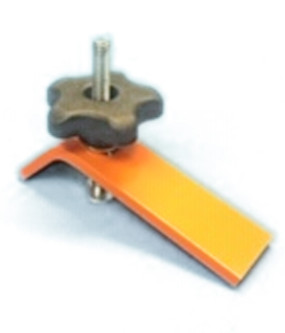
- 4 Hold Down Clamps.
- 4A Nema23 Stepper Motors.
- Proximity Home & Limit Switches.
- Slatwall Table for easy to use t-clamps.
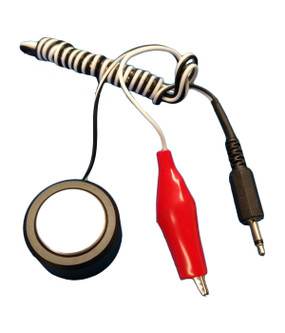
- Touch Probe to set Z Axis Zero
Applications:
- Woodworking: Perfect for crafting intricate wood designs, signage, and more.
- Prototyping: Ideal for rapid prototyping of parts and models.
- Arts and Crafts: Enables precise engraving and carving for artistic creations.
- Education: Great for teaching CNC technology and manufacturing processes.
- Hobbyist/Maker and Professional part making and production
Whether you're a seasoned professional or just starting your CNC journey, this small CNC router offers exceptional precision and versatility, empowering you to bring your ideas to life effortlessly. Invest in precision, invest in quality—get your Small CNC Router today and elevate your craftsmanship!"
Customer will need windows PC with Mach3, Mach4 or UCCNC software.
Product Videos
Setting Tool Zero Like a Pro using Mach3. In this video, We're going to show you how to set up tool zero like a pro in mach3, Also called work coordinates or work offsets. We will also explain how to set up Safe Z and G28 the how convenient it is. We believe is the most convenient way to set up your router for repetitive work or production. Bellow you can find the transcript of the video: We're going to show you how to set up tool zero like a pro in mach3, Also called work coordinates or work offsets. Usually, an upper or lower corner, even though many people especially when they start cnc as Hobbies usually set the tool zero on the top center of the stock. That is because when they finally Get to make their first G-code they probably use whatever piece of wood they found around the shop and want to repeat that G-code in whatever stock they can get their hands on. When we're using a Cam software. We are asked to select the work coordinates starting point, which could be an upper or lower corner or the top or bottom center Of the stock. Let me show you how we do it. And then we'll explain how to set up Mach 3 For setting the tool zeros like a pro. So you can see we did not set the tools zero. Or maybe we did but it was off camera. Let's try another job. And then again, we did not set tool zero. Let's repeat the job again And let's see what happens. Okay, so maybe they are sharing common work coordinates. Now, let's try A job Using the top center Of the stock. Let's restart Mach 3. now we home the machine again. You can see the machine coordinates Go back to the same position We had previously. So, The work coordinates are being shaved. Well, I'll explain it later. let's stop this job. Let's assume that the bit broke, The World Series is about to start, Aliens finally landed and they're knocking on the door. Or whatever. Let's assume we lost some steps and tool zero position is gone And we need to restart the job. we need to write The line mach3 was working on, in this case, 1124. And restart Mach 3. Notice that I have left all different stock and hold down clamps in the way on purpose And the machine has not crashed once into any of those. that is because we're using safe Z with machine coordinates. I'll explain that later. Also, notice that every time the job finishes It goes back to a corner or a rest position that we have selected. Or set. That is because we're using a G28. I will also explain it later in this video. Okay, so let's get back to our unfinished business. Enter the line number where the job stopped, Or a couple of lines before to ensure we don't miss anything. Click, run from here. Click cycle. Start. And then OK to move to X, Y and Z coordinates using safe Z and check on start spindle. And then click OK. And then once the spindle is running and in position, Just click again, cycle start And it should start running Right when we left. So you can see this is very convenient because not only you don't have to save you're a zero all the time, But, If you lose a step or the machine shuts down or whatever, You can always get to the work position, You can even start from the beginning and it's always going to go through the same path. So it's very easy and simple. Let me show you How the magic is done. You need to have limit home sensors and the machine needs to be homed at mach3 startup. You also need to set up a corner angle, where your stock rests. Like a scanner or a copy machine. set Mach 3 To remember your word coordinates or g54. go to general config and check on copy g54 From g59.253 on startup Then go to Offsets tab click on save work offsets, scroll to the bottom of the table, click on G59p253, click on select, then on close, move the machine to your Zero position we are using the bottom left corner, and click on x zero, y zero, and z zero to set as you work coordinates. And finally, when designing your cam Use The bottom left corner as set in mach3 for your work coordinates. now as promised let me show you how to set up Safe Z and G28 To set Safe Z go to config, Safe z setup, click on Allow safe z moves, select safe is in machine coordinates to avoid any conflict with work coordinates, set safe z position, and check go to safe z whet stop button is hit. To set up g28, go to config, homing/limits, and enter the x, y, and z coordinates you want the machine to go on the bottom left table with G28 home location coordinates. as a warning, do not use g28 if you do not home your machine at mach3 startup, or your machine will crash as it will run to a machine coordinate position without a machine coordinate being set. The Easy Mode screen we have been using is just a screen we made to make it easier to use, you can download it from our website, it is free, You just have to enter any email, Basically because Our website file manager uses an email to send a link to download the file.
-
 Tool Zero Like...Setting Tool Zero Like a Pro using Mach3. In this video, We're...